Start with a task, not a long list of settings
Phone accessibility settings can feel overwhelming because they cover many different needs. You do not have to learn them all. Think of one everyday task you would like to make easier: reading a message, following a video, hearing a call or tapping a small button. Make one change, try that task again and decide whether the change helps.
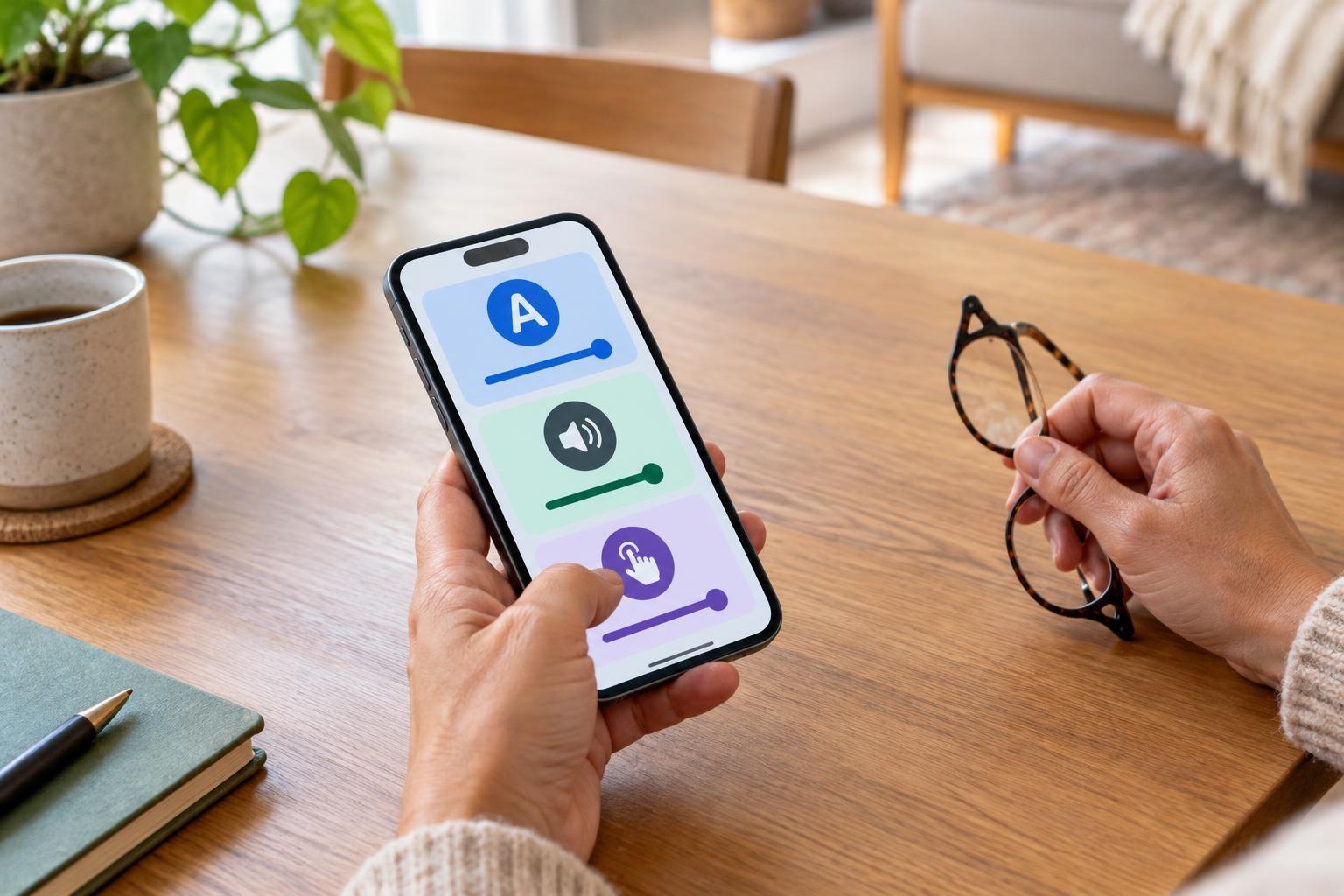
On most phones, accessibility options are grouped in the Settings app. You may see categories such as Display, Vision, Hearing, Audio, Touch or Interaction. Names and locations vary by phone and software version, so the search box in Settings can be useful. Before changing several options, note what you adjusted. That makes it easier to undo a setting that does not suit you.
Make text easier to read
If text looks too small, try the phone’s text-size setting first. Increase it a little, then check a message, a menu and an app you use often. Some apps follow the phone’s text-size choice more closely than others. A separate display-size or screen-zoom setting may enlarge buttons and other controls as well as words. That can help, but it may also leave less information visible at once.
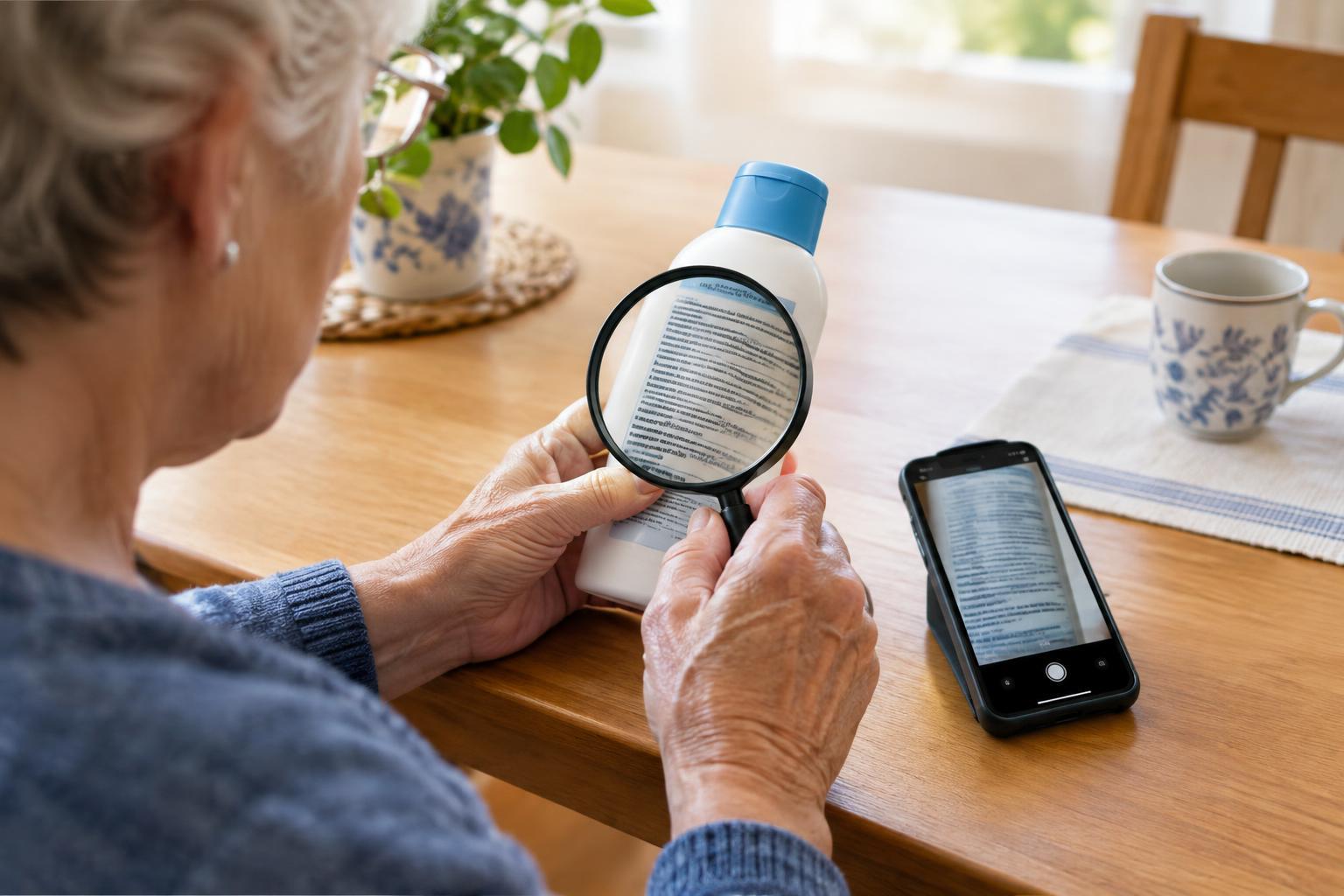
Brightness, contrast and color settings are worth testing in the places where you use your phone. Brighter is not always more comfortable. Dark mode may help in some lighting, while a light background may be clearer in others. If an app offers a simplified reading view, try it on a longer page. A screen magnifier can help with occasional small details without making everything on the phone larger.
Find more than one way to follow sound
Captions can make spoken content easier to follow when you cannot hear it clearly or when listening is inconvenient. Check the accessibility and media settings for caption options, then try them with a video. Availability and accuracy depend on the app and the content. Captions may miss words, especially when speech is unclear, so avoid relying on them alone for something important.
For audio you do want to hear, explore volume controls and any available left-right balance or mono audio option. Mono audio combines stereo channels, which can be useful if you listen through one earbud. Some phones also offer settings for compatible hearing devices or visual and vibration alerts for notifications. Test a call, a video and an alert separately: a setting that helps with one may not change the others.
Make touch controls easier to use
If small targets are hard to tap, enlarging the display may be a good first step. You can also look for touch settings that adjust how long a press must last or how the phone responds to repeated taps. These options may help if accidental touches are common, but a longer response time can make the phone feel slower. Change one setting at a time and try familiar actions, such as opening an app or typing a short message.
Many phones offer alternatives to precise tapping. Depending on the device, you may be able to navigate with voice commands, use an on-screen assistive menu or connect a keyboard or other input device. Gestures can also have alternatives; for example, an on-screen control may replace a difficult button combination. Choose a method that works reliably in your usual surroundings, including places where speaking aloud is not practical.
Build a setup you can return to
After each change, test your phone in a realistic situation rather than only on the Settings screen. Read a message in your usual lighting, play a video at a comfortable volume or use a frequently visited app. If someone is helping you, ask them to explain each change and let you try it yourself. Your preferences matter more than a helper’s idea of the “right” setup.
A useful final step is to learn how to turn your favorite feature on and off quickly. Some phones let you add an accessibility shortcut to a button, gesture or quick-settings panel. Keep a brief note of the settings you liked and where you found them. Phone accessibility is not a one-time project: you can revisit your choices when your routines, apps or surroundings change.